> ## Documentation Index
> Fetch the complete documentation index at: https://docs.gorynse.com/llms.txt
> Use this file to discover all available pages before exploring further.
# Tracking work orders
> Use Schedule, Work Orders, and History to see what's coming up, what's in flight, and what's done.
Three views help you keep tabs on your work orders: **Schedule**, **Work Orders**, and **History**. All live under Mobile Wash in [app.gorynse.com](https://app.gorynse.com).
Completed work orders usually appear within a few days of the wash — exact timing varies by vendor. Billing is separate: depending on what you've set up with Rynse, a mobile wash is either billed right after it's completed or rolled into your monthly invoice.
## Schedule
**Mobile Wash → Schedule** is a month-view calendar with summary cards — the fastest way to answer "when's my next wash?" and "what landed last month?"
The calendar shows three kinds of events:
* **Scheduled** (purple) — upcoming visits coordinated with your vendor. A recurring visit may show an estimated vehicle count.
* **Active** (blue) — work orders that have been matched to a vendor and are in motion.
* **Completed** (green) — past work orders that have been processed, with the vehicle count in the label.
Click any day to see its entries in the side panel. Click an active or completed event to open the work order detail.
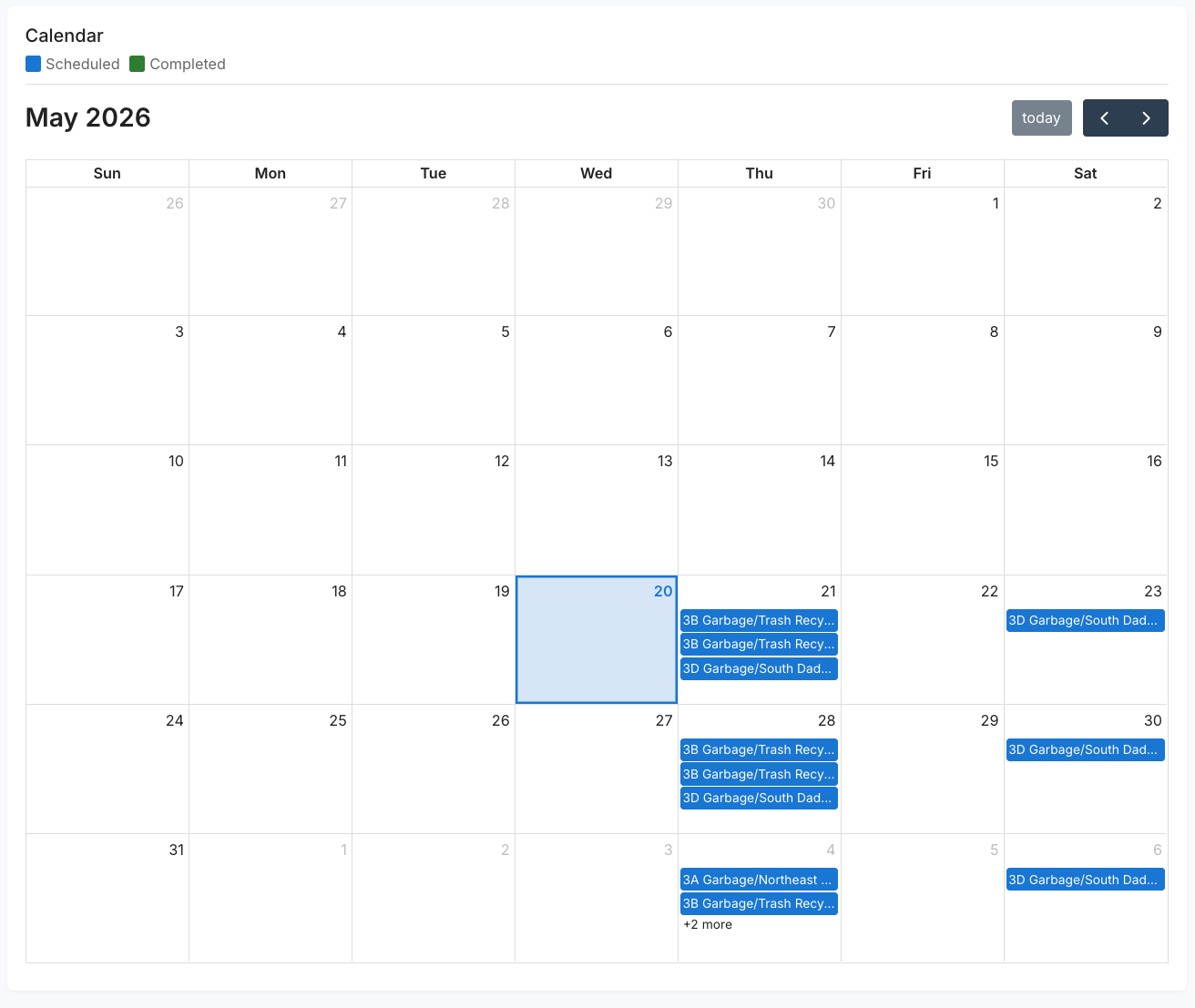 Pending requests you've submitted appear on **Work Orders**, not on the Schedule calendar — they show up here once they're active. If a recurring visit you expect isn't on the calendar, it likely hasn't been dispatched — contact your account team.
## Work Orders
**Mobile Wash → Work Orders** lists every work order for your organization, at any status. Click any row to open its full detail.
| Column | What it shows |
| -------------- | --------------------------------------------------------------------------------------------------------------------------------------------------- |
| Date | Scheduled date, or **TBD**. |
| Completed Date | The date the wash was finished. Blank until the order is `Completed`. |
| Name | Work order name. |
| Status | A colored badge: `Requested`, `Active`, `Completed`, or `Cancelled`. An `Active` order whose scheduled date has passed is also flagged **Overdue**. |
| Number | Reference this with support. |
| Vendor | Assigned vendor, once matched. |
| Actions | **Delete**, only while `Requested`. |
To create a new order, use **Request work order** in the top-right — see [Requesting a wash](/mobile-wash/requesting-a-wash).
Deleting asks you to confirm first, and it can't be undone.
### Opening a work order
Click any work order — from the list, the Schedule, or History — to open its detail. The top of the panel tells you where things stand at a glance:
* A **status badge** — `Requested`, `Active`, `Completed`, or `Cancelled`.
* A short **status message** in plain language. A pending request reads that Rynse is assigning a vendor and confirming the service date, and that you'll be notified once it's active and scheduled. An active order shows the scheduled date; a completed one shows the date it finished.
* For a request that's still pending, a **progress tracker** — **Request submitted → Vendor assignment → Service scheduling → Active** — so you can see what's left before the wash is booked.
Below that, a **request summary** gathers everything in one place: the work order number, who requested it, your preferred date window, the purchase order (if you entered one), the services, the service address, and the assigned **Vendor** — shown as **—** until Rynse matches one, so you can see where assignment stands at any stage. The scheduled date joins the summary once the order is active. Completed orders also show the date the wash was finished and list the vehicles serviced, and for each one the service applied along with its **Price** and **Amount** — the per-vehicle figures that roll up to the total on your invoice.
The button on each work order card follows its status too — **View request**, **View details**, or **View results**.
## History
**Mobile Wash → History** (at `/mobilewash/history`) is a clean archive of **Completed** and **Cancelled** work orders only. It isn't in the Mobile Wash tab bar — go there directly for reconciliation without active work in the way.
Each entry shows the work order number, date, vehicle count, organization, facility, and a **View results** button (**View details** for a cancelled order) for the full per-vehicle detail with services and pricing. Use it to reconcile invoices (match line items by number), review a vendor's recent work, or pull records for accounting.
## Common workflows
Open **Work Orders**. New requests appear at the top as `Requested`. Open the order to see a plain-language status message and a progress tracker showing what's left before the wash is booked. Once Rynse matches a vendor, the row shows the vendor name and moves to `Active`. Sitting at `Requested` for more than a couple of days? Contact your account team.
Open **Schedule**. Recurring visits show as purple events on their expected dates. A missing date usually means the visit hasn't been dispatched — flag it with your account team.
Open **History**, find the month you need, and click into each completed order for per-vehicle services and pricing. These tie back to the line items on your monthly invoice.
Find the order in **History** by date and facility, then open the result to see which vehicles were serviced and what services they received. If something looks off, contact your account team with the work order number.
## What's next
Submit a new on-site wash request when you need vehicles handled outside the recurring cadence.
Pair Mobile Wash records with the wash health view to see which vehicles are getting attention and which are being missed.
Pending requests you've submitted appear on **Work Orders**, not on the Schedule calendar — they show up here once they're active. If a recurring visit you expect isn't on the calendar, it likely hasn't been dispatched — contact your account team.
## Work Orders
**Mobile Wash → Work Orders** lists every work order for your organization, at any status. Click any row to open its full detail.
| Column | What it shows |
| -------------- | --------------------------------------------------------------------------------------------------------------------------------------------------- |
| Date | Scheduled date, or **TBD**. |
| Completed Date | The date the wash was finished. Blank until the order is `Completed`. |
| Name | Work order name. |
| Status | A colored badge: `Requested`, `Active`, `Completed`, or `Cancelled`. An `Active` order whose scheduled date has passed is also flagged **Overdue**. |
| Number | Reference this with support. |
| Vendor | Assigned vendor, once matched. |
| Actions | **Delete**, only while `Requested`. |
To create a new order, use **Request work order** in the top-right — see [Requesting a wash](/mobile-wash/requesting-a-wash).
Deleting asks you to confirm first, and it can't be undone.
### Opening a work order
Click any work order — from the list, the Schedule, or History — to open its detail. The top of the panel tells you where things stand at a glance:
* A **status badge** — `Requested`, `Active`, `Completed`, or `Cancelled`.
* A short **status message** in plain language. A pending request reads that Rynse is assigning a vendor and confirming the service date, and that you'll be notified once it's active and scheduled. An active order shows the scheduled date; a completed one shows the date it finished.
* For a request that's still pending, a **progress tracker** — **Request submitted → Vendor assignment → Service scheduling → Active** — so you can see what's left before the wash is booked.
Below that, a **request summary** gathers everything in one place: the work order number, who requested it, your preferred date window, the purchase order (if you entered one), the services, the service address, and the assigned **Vendor** — shown as **—** until Rynse matches one, so you can see where assignment stands at any stage. The scheduled date joins the summary once the order is active. Completed orders also show the date the wash was finished and list the vehicles serviced, and for each one the service applied along with its **Price** and **Amount** — the per-vehicle figures that roll up to the total on your invoice.
The button on each work order card follows its status too — **View request**, **View details**, or **View results**.
## History
**Mobile Wash → History** (at `/mobilewash/history`) is a clean archive of **Completed** and **Cancelled** work orders only. It isn't in the Mobile Wash tab bar — go there directly for reconciliation without active work in the way.
Each entry shows the work order number, date, vehicle count, organization, facility, and a **View results** button (**View details** for a cancelled order) for the full per-vehicle detail with services and pricing. Use it to reconcile invoices (match line items by number), review a vendor's recent work, or pull records for accounting.
## Common workflows
Open **Work Orders**. New requests appear at the top as `Requested`. Open the order to see a plain-language status message and a progress tracker showing what's left before the wash is booked. Once Rynse matches a vendor, the row shows the vendor name and moves to `Active`. Sitting at `Requested` for more than a couple of days? Contact your account team.
Open **Schedule**. Recurring visits show as purple events on their expected dates. A missing date usually means the visit hasn't been dispatched — flag it with your account team.
Open **History**, find the month you need, and click into each completed order for per-vehicle services and pricing. These tie back to the line items on your monthly invoice.
Find the order in **History** by date and facility, then open the result to see which vehicles were serviced and what services they received. If something looks off, contact your account team with the work order number.
## What's next
Submit a new on-site wash request when you need vehicles handled outside the recurring cadence.
Pair Mobile Wash records with the wash health view to see which vehicles are getting attention and which are being missed.