

Completed work orders usually appear within a few days of the wash — exact timing varies by vendor. Billing is separate: depending on what you’ve set up with Rynse, a mobile wash is either billed right after it’s completed or rolled into your monthly invoice.
Schedule
Mobile Wash → Schedule is a month-view calendar with summary cards — the fastest way to answer “when’s my next wash?” and “what landed last month?” The calendar shows three kinds of events:- Scheduled (purple) — upcoming visits coordinated with your vendor. A recurring visit may show an estimated vehicle count.
- Active (blue) — work orders that have been matched to a vendor and are in motion.
- Completed (green) — past work orders that have been processed, with the vehicle count in the label.
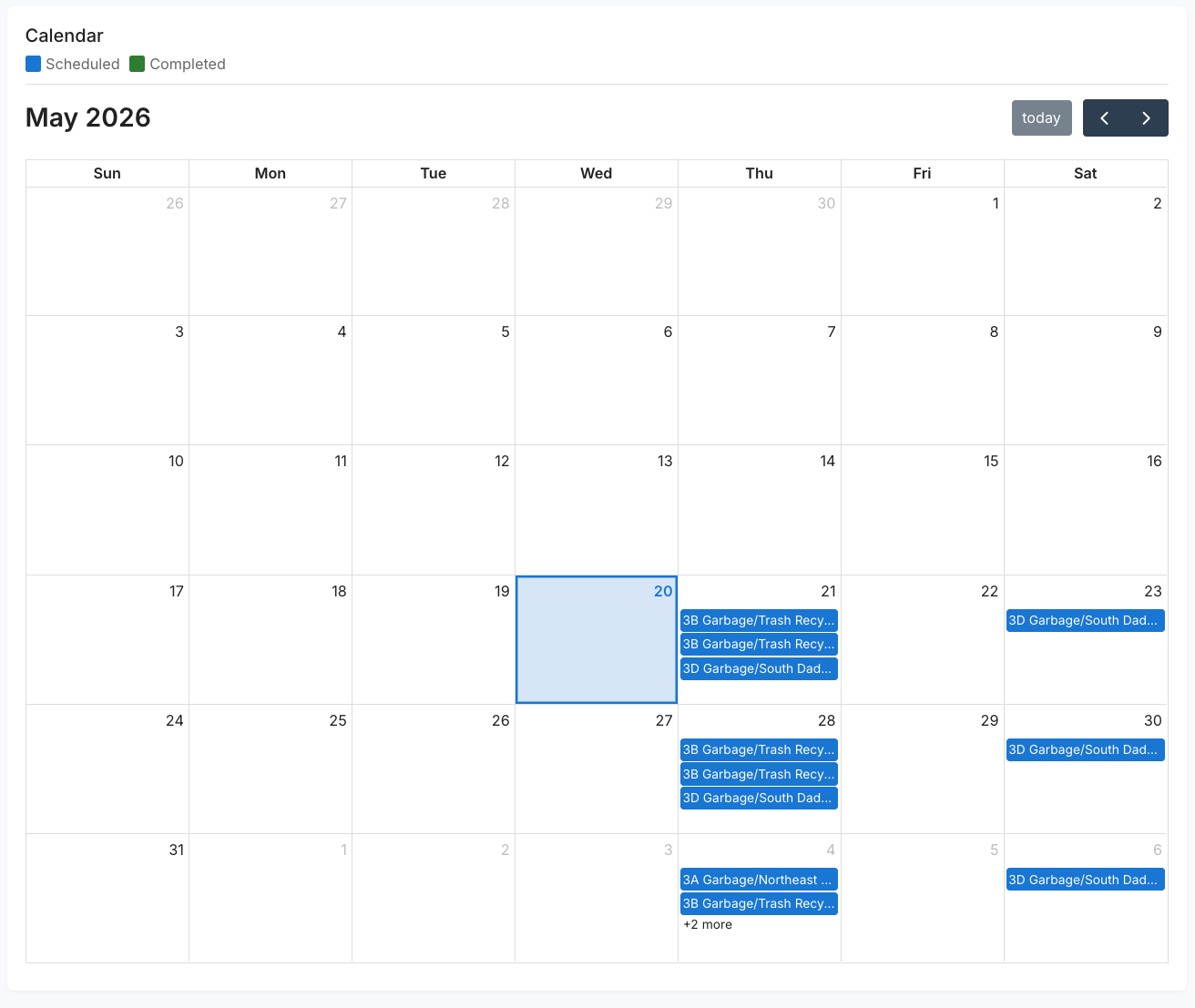
The Schedule calendar — purple events are scheduled visits, blue are active, green are completed washes
Pending requests you’ve submitted appear on Work Orders, not on the Schedule calendar — they show up here once they’re active. If a recurring visit you expect isn’t on the calendar, it likely hasn’t been dispatched — contact your account team.
Work Orders
Mobile Wash → Work Orders lists every work order for your organization, at any status. Click any row to open its full detail. Above the list, colored summary chips tally how many orders sit in each status — for exampleRequested: 3, Active: 5, Completed: 12 — for a quick read on your current volume.
A Delete action is available on a row only while the order is still
Requested.
To create a new order, use Request work order in the top-right — see Requesting a wash.
Deleting asks you to confirm first, and it can’t be undone.
Opening a work order
Click any work order — from the list, the Schedule, or History — to open its detail. The top of the panel tells you where things stand at a glance:- A status badge —
Requested,Active,Completed, orCancelled. - A short status message in plain language. A pending request reads that Rynse is assigning a vendor and confirming the service date, and that you’ll be notified once it’s active and scheduled. An active order shows the scheduled date; a completed one shows the date it finished.
- For a request that’s still pending, a progress tracker — Request submitted → Vendor assignment → Service scheduling → Active — so you can see what’s left before the wash is booked.
History
Mobile Wash → History (at/mobilewash/history) is a clean archive of Completed and Cancelled work orders only. It isn’t in the Mobile Wash tab bar — go there directly for reconciliation without active work in the way.
Each entry shows the work order number, date, vehicle count, organization, facility, and a View results button (View details for a cancelled order) for the full per-vehicle detail with services and pricing. Use it to reconcile invoices (match line items by number), review a vendor’s recent work, or pull records for accounting.
Common workflows
Checking the status of a request I submitted
Checking the status of a request I submitted
Open Work Orders. New requests appear at the top as
Requested. Open the order to see a plain-language status message and a progress tracker showing what’s left before the wash is booked. Once Rynse matches a vendor, the row shows the vendor name and moves to Active. Sitting at Requested for more than a couple of days? Contact your account team.Confirming next week's scheduled visit
Confirming next week's scheduled visit
Open Schedule. Recurring visits show as purple events on their expected dates. A missing date usually means the visit hasn’t been dispatched — flag it with your account team.
Pulling records for accounting or reconciling an invoice
Pulling records for accounting or reconciling an invoice
Open History, find the month you need, and click into each completed order for per-vehicle services and pricing. These tie back to the line items on your monthly invoice.
Investigating a complaint about a specific wash
Investigating a complaint about a specific wash
Find the order in History by date and facility, then open the result to see which vehicles were serviced and what services they received. If something looks off, contact your account team with the work order number.
What’s next
Requesting a wash
Submit a new on-site wash request when you need vehicles handled outside the recurring cadence.
Fleet Wash Health
Pair Mobile Wash records with the wash health view to see which vehicles are getting attention and which are being missed.